 by
by I am starting this page to keep notes on concepts, ideas, rules, and terminological explanations as part of my exploration of the Rust programming language. From time to time, I will try to draw comparisons between Rust terminology or concepts and their C++ counterparts where applicable to make it easy for someone coming from the C++ world to the Rust world. I believe linking and comparing concepts from one language (like C++) to a new language like Rust will help build the knowledge base and master the language much faster.
rustup, cargo, rustc and crate
In simple words, rustup is the Rust toolchain management utility. If there is a new Rust release, we run rustup update, and it updates the Rust toolchain in the local installation. Cargo is the source code build management utility; it also manages dependencies. It is used to build the whole project codebase along with the dependencies from the top. rustc is the compiler for compiling individual source code or crates. A crate is a single or multiple source files that compile together and produce an executable or a library.
First steps to write hello world in Rust
So, if I am starting to write, compile, and run my first Rust program, I will first have to install rustup, which will install and set the path for cargo and rustc. Then I will write my hello world program. Write a Cargo.toml for the project, which will describe the details of the project, like the name of the executable, the version, etc. It may also include the dependencies (if any) and their respective versions, etc. Then run cargo build in the project folder, which will invoke rustc to compile and produce the executable.
So basically, you don’t have to worry about installing individual tools like cargo, rustc, etc. Just install rustup, and it will install the standard Rust toolchain for you.
Cargo.toml in a Rust project is like the CMakeLists.txt in a CMake-based C++ project that describes the configuration and dependencies in the project.
Rust workflow
A lot of the time we struggle to conceptualize where to start and how to write our first program if we are starting with a new language. To simplify that, I like to draw mental models. So if you are starting Rust for the first time, you can conceptualize the workflow as follows:
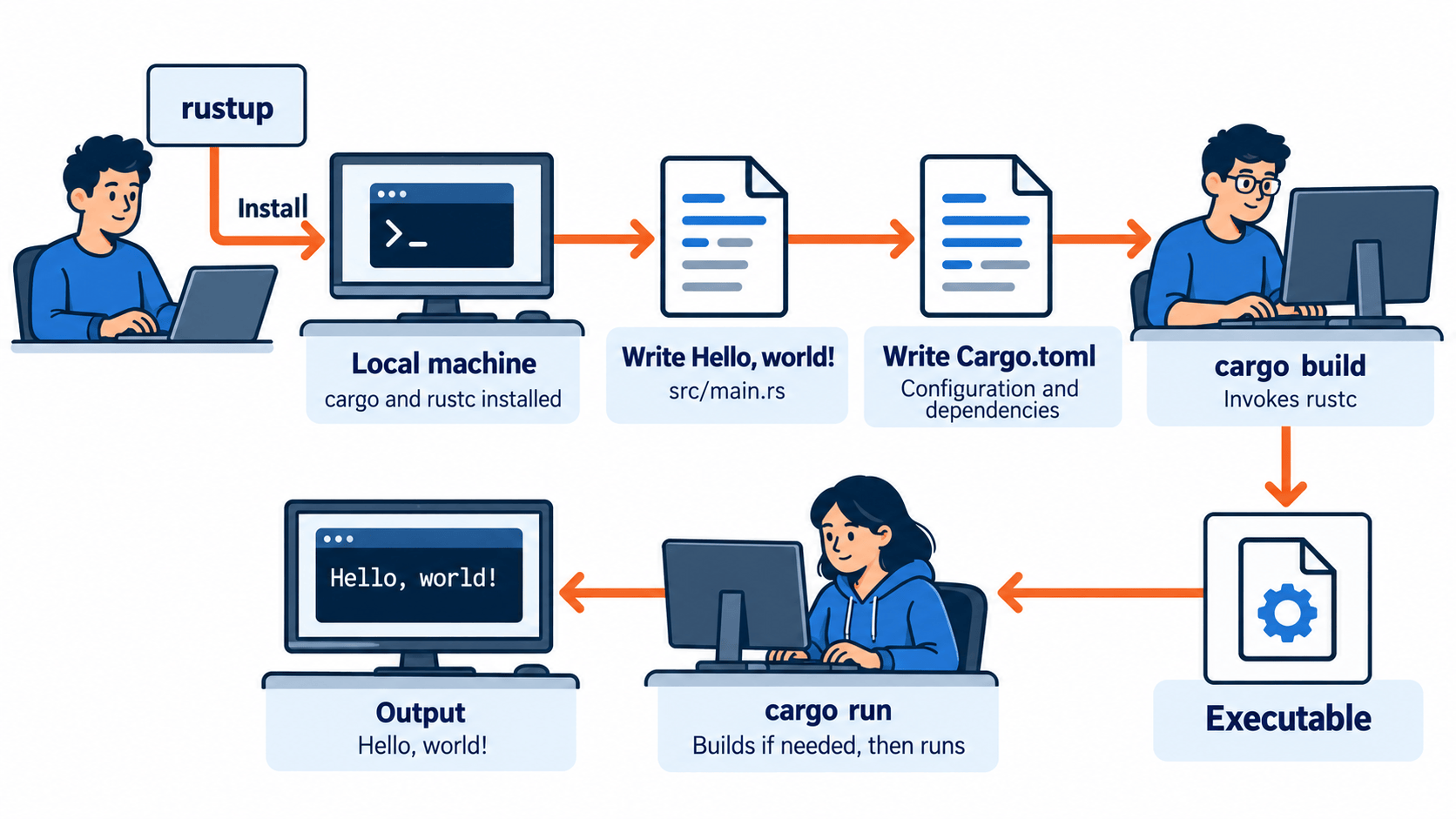
For reasons, it is oversimplified, and that is how we learn. We first get a bit of a grip on the fundamentals, build a mental model so that our brain trains at visualizing the building blocks, and then gradually top it up with larger complexity as we make progress in our learning journey.
Rustup installation
I have written a blog in the past describing the aspects of the installation of Rustup. You will find it here.
Building your first Rust project
While describing the workflow above, I have deliberately avoided how Rust automates the creation of a new project with the help of cargo so that we understand all the components involved in the process. However, to create a new project in Rust, we can use cargo new <project name> to create the basic infrastructure, such as the project file structure, the default Cargo.toml, and the src/main.rs file, which contains the “Hello World” source code. Let us try this in a Linux console in the next step.
Create the hello world project structure
~$ cargo new hello_world
    Creating binary (application) `hello_world` package
note: see more `Cargo.toml` keys and their definitions at
    https://doc.rust-lang.org/cargo/reference/manifest.html
With the command cargo new <project name> in the console, we now have our hello_world project directory in the current folder. Explore what it contains.
~$ cd hello_world/
~/hello_world$ tree
.
├── Cargo.toml
└── src
    └── main.rs

2 directories, 2 files
You can run VS Code to explore the content of the Cargo.toml and src/main.rs files and examine for yourself.
To open the project content in VS Code, do the following in the console:
~/hello_world$ code .Cargo.toml
[package]
name = "hello_world"
version = "0.1.0"
edition = "2024"

[dependencies]
src/main.rs
fn main() {
    println!("Hello, world!");
}
Build
~/hello_world$ cargo build
   Compiling hello_world v0.1.0 (/home/vbhadra/hello_world)
    Finished `dev` profile [unoptimized + debuginfo] target(s) in 0.38s
Run
~/hello_world$ cargo run
    Finished `dev` profile [unoptimized + debuginfo] target(s) in 0.01s
     Running `target/debug/hello_world`
Hello, world!
Clean
~/hello_world$ cargo clean
     Removed 45 files, 8.5MiB total
Build and Run
~/hello_world$ cargo run
   Compiling hello_world v0.1.0 (/home/vbhadra/hello_world)
    Finished `dev` profile [unoptimized + debuginfo] target(s) in 0.15s
     Running `target/debug/hello_world`
Hello, world!
Quiet Output
At each stage, you might have noticed that there is some verbose text that appears on the console, cluttering the actual output. To suppress the additional text, you can always use -q as follows:
~/hello_world$ cargo clean -q
~/hello_world$ cargo build -q
~/hello_world$ cargo run -q
Hello, world!
~/hello_world$ cargo clean
     Removed 23 files, 8.4MiB total
~/hello_world$ cargo run -q
Hello, world!
Leave a Reply