 by
by Aviation data has always been fascinating. Planes crisscross the globe. Each one sends out tiny bursts of information as it soars through the sky. Thanks to platforms like the OpenSky Network, we can now tap into that data in real time.
In this post, I’ll walk you through how I built a fully serverless aircraft tracking system using AWS. The idea is simple. Fetch live aircraft positions. Stream them through the cloud. Store them in a fast, query-able database. But putting that into practice? It took some careful wiring of AWS services like Lambda, Kinesis, and DynamoDB.
If you’re experimenting with real-time data pipelines, this guide will assist you. You might also be curious about how to process live telemetry at scale. This guide will assist you. It will walk you through everything step by step. The guide covers setting up the stream to storing the data for dashboards and analysis.
Let’s get started.
We’ll be working with the following components:
- OpenSky Network API for live aircraft data
- AWS Lambda for serverless compute
- Amazon Kinesis for streaming ingestion
- Amazon DynamoDB for persistent, low-latency storage
The aim? To stream, parse, and store real-time aircraft location and state data, ready for downstream analytics and dashboards.
Architecture Summary
Lambda 1 (OpenSkyIngestLambda): Fetches, encodes, and pushes aircraft data to Kinesis.
Kinesis (OpenSkyGPSStream): Buffer for scalable, real-time streaming.
Lambda 2 (ProcessOpenSkyKinesisData): Reads from Kinesis, parses JSON, and writes to DynamoDB.
DynamoDB (AircraftLiveState): Fast and scalable aircraft state database.
Step-by-Step Setup
Data Ingestion
For data ingestion from the OpenSky API, we’ll use a Lambda function. It polls the API at regular intervals. This fetches real-time aircraft data. This function acts as our data producer and will push the incoming records into a Kinesis Data Stream.
To set this up, we need to first create the ingestion Lambda function. Follow the steps below to create a new Lambda function tailored for this purpose.
Creating the Lambda Function
Go to Amazon Console, search for Lambda and click on the Create function button as shown below:
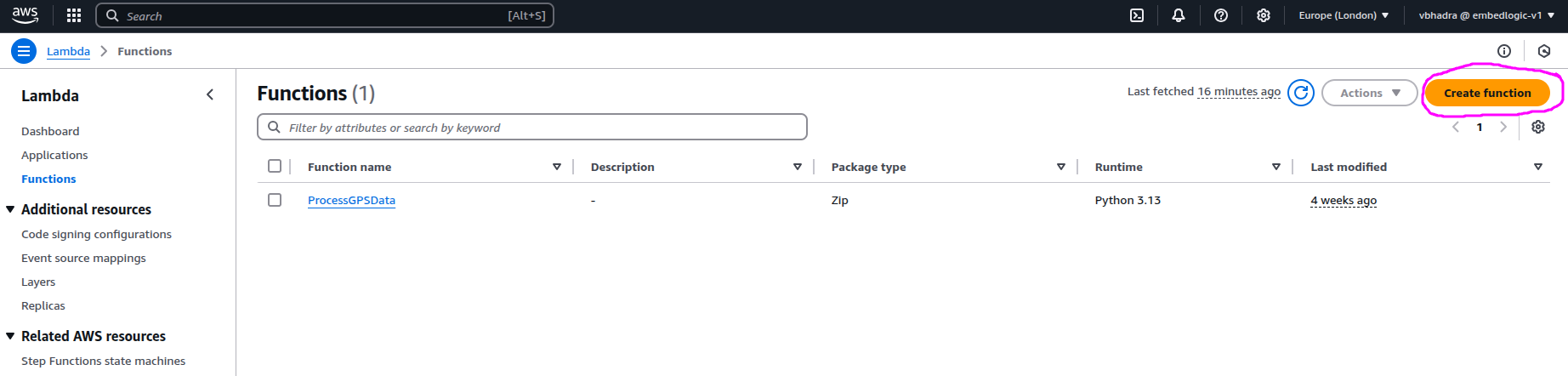
Select Author from scratch, name the function something like OpenSkyIngestLambda, select Runtime as Python 3.13 and then click on Create function:

If the lambda function has been successfully created then you should see some message like the blow on the screen:
Successfully created the function OpenSkyIngestLambda. You can now change its code and configuration. To invoke your function with a test event, choose “Test”.
Now it’s time to write the Python code for our Lambda function. This code will fetch data from the OpenSky API. It will then send it to the Kinesis stream. Developing the complete Python logic is beyond the scope of this blog. But I will provide the source code that I used for my purpose. To create the new Lambda function follow the below steps:
- Go to the AWS Lambda console
- Select your Lambda function (the one you just created, ProcessOpenSkyKinesisData)
- Navigate to the Code section
- Replace the default code with the following:
import json
import os
import boto3
import requests
import logging
from botocore.exceptions import ClientError
from requests.exceptions import RequestException

# Set up structured logging
logger = logging.getLogger()
logger.setLevel(logging.INFO)

# Constants (can be overridden with environment variables)
KINESIS_STREAM = os.getenv('KINESIS_STREAM', 'OpenSkyGPSStream')
API_URL = os.getenv('OPENSKY_API_URL', 'https://opensky-network.org/api/states/all')
MAX_RECORDS = int(os.getenv('MAX_RECORDS', '50'))

# Clients
kinesis = boto3.client('kinesis')

def lambda_handler(event, context):
    try:
        logger.info(f"Requesting data from OpenSky: {API_URL}")
        response = requests.get(API_URL, timeout=10)
        response.raise_for_status()
        data = response.json()
        states = data.get("states", [])

        logger.info(f"Fetched {len(states)} aircraft records. Pushing up to {MAX_RECORDS} to Kinesis...")

        records_to_send = []
        for state in states[:MAX_RECORDS]:
            payload = {
                "icao24": state[0],
                "callsign": state[1].strip() if state[1] else "",
                "origin_country": state[2],
                "time_position": state[3],
                "last_contact": state[4],
                "longitude": state[5],
                "latitude": state[6],
                "baro_altitude": state[7],
                "on_ground": state[8],
                "velocity": state[9],
                "heading": state[10],
                "vertical_rate": state[11]
            }

            records_to_send.append({
                'Data': json.dumps(payload),
                'PartitionKey': payload["icao24"]
            })

        # Send in batch using put_records (max 500 per call)
        if records_to_send:
            response = kinesis.put_records(StreamName=KINESIS_STREAM, Records=records_to_send)
            failed = response.get('FailedRecordCount', 0)
            logger.info(f"Put {len(records_to_send) - failed}/{len(records_to_send)} records successfully.")
        else:
            logger.warning("No records to send to Kinesis.")

        return {
            'statusCode': 200,
            'body': f"Published {len(records_to_send)} records to Kinesis with {failed} failures."
        }

    except RequestException as req_err:
        logger.error(f"OpenSky API request failed: {str(req_err)}")
        return {'statusCode': 500, 'body': f"API error: {str(req_err)}"}

    except ClientError as kinesis_err:
        logger.error(f"Kinesis put_records failed: {str(kinesis_err)}")
        return {'statusCode': 500, 'body': f"Kinesis error: {str(kinesis_err)}"}

    except Exception as e:
        logger.error(f"Unexpected error: {str(e)}")
        return {'statusCode': 500, 'body': f"Unexpected error: {str(e)}"}
Deploying the Lambda Function
Once you have replace the Code area with the above code, click Deploy on the left hand pane.

If the Deploy goes ok then you should see a message like below:
Successfully updated the function OpenSkyIngestLambda.
Now we are ready to test our lambda function.
Testing the Lambda function
Go to Configuration Tab at the top, then navigate to Environment variables and then Add the following Environment variables:

To test your newly created Lambda function click on the Test button:
Create Test Even
Go to the Test tab at the top and create a new even. Once you navigate to the Test tab you should see a screen like the following:

Enter the name of the event as testEvent and enter the below in the JSON field:
{}
Now click on Test and check the output window, and it maybe showing the following error:

The error is this:
“Unable to import module ‘lambda_function’: No module named ‘requests'”
This essentially means the Lambda couldn’t find the required python module called “requests”.
Use Lambda Layers
To resolve this issue, we need to install the module locally on a Linux/Ubuntu machine. Then, we will upload the zip file for deployment. Open a linux terminal and do the following:
mkdir lambda_opensky_ingest
cd lambda_opensky_ingest
pip install requests -t .
zip -r lambda_opensky_ingest.zip .
Here we have pip installed the required module and the zipped up the whole folder into a file called lambda_opensky_ingest.zip.
Upload the file
Click on the Upload from button and select the zip file just created:

Role and Permission error
Status: Succeeded
Test Event Name: testEvent

Response:
{
  "statusCode": 500,
  "body": "Unexpected error: An error occurred (AccessDeniedException) when calling the PutRecord operation: User: arn:aws:sts::402691950139:assumed-role/OpenSkyIngestLambda-role-bb3l366p/OpenSkyIngestLambda is not authorized to perform: kinesis:PutRecord on resource: arn:aws:kinesis:eu-west-2:402691950139:stream/OpenSkyGPSStream because no identity-based policy allows the kinesis:PutRecord action"
}
Successful:
Status: Succeeded
Test Event Name: testEvent
Response:
{
  "statusCode": 200,
  "body": "Published 50 records to Kinesis."
}
Creating the Kinesis Stream (via CLI)
Before wiring everything together, we created the Kinesis stream from the command line using AWS CLI:
Create the stream:
aws kinesis create-stream \
  --stream-name OpenSkyGPSStream \
  --shard-count 1
Cost Consideration
We used a single shard to start with (sufficient for basic throughput). Kinesis pricing is based on shards, so this keeps cost low while testing.
Verify the stream creation
aws kinesis describe-stream \
  --stream-name OpenSkyGPSStream
{
    "StreamDescription": {
        "Shards": [
            {
                "ShardId": "shardId-000000000000",
                "HashKeyRange": {
                    "StartingHashKey": "0",
                    "EndingHashKey": "340282366920938463463374607431768211455"
                },
                "SequenceNumberRange": {
                    "StartingSequenceNumber": "49662170844189892104724662242797584892425704607773097986"
                }
            }
        ],
        "StreamARN": "arn:aws:kinesis:eu-west-2:402691950139:stream/OpenSkyGPSStream",
        "StreamName": "OpenSkyGPSStream",
        "StreamStatus": "ACTIVE",
        "RetentionPeriodHours": 24,
        "EnhancedMonitoring": [
            {
                "ShardLevelMetrics": []
            }
        ],
        "EncryptionType": "NONE",
        "KeyId": null,
        "StreamCreationTimestamp": "2025-04-08T07:33:29+01:00"
    }
}
Kinesis Stream Description
The kinesis descrive command tells us the following about the stream we have just created:
- StreamName:
OpenSkyGPSStream— the name of your stream - StreamStatus:
ACTIVE— it’s live and ready to ingest data - RetentionPeriodHours:
24— data is kept for 24 hours by default - ShardId:
shardId-000000000000— this stream has a single shard - HashKeyRange: full range (
0to max) — since there’s only one shard - SequenceNumberRange: tracks the order of records within the shard
- EncryptionType:
NONE— data is not encrypted (optional to enable) - StreamARN: unique identifier for referencing the stream in IAM and code
Now if you login to your Amazon console and navigate to the Amazon Kinesis and then DataStream, you should something like the below:

This confirmation allowed us to safely move forward with connecting the stream to Lambda 2 for automatic invocation.
response = requests.get("https://opensky-network.org/api/states/all")Each record is serialized to JSON, base64 encoded, and sent using:
IAM Permissions: Solving AccessDenied Errors
We hit several access issues initially:
For Lambda 1:
Added a custom inline policy: AllowKinesisPutRecord
{
  "Effect": "Allow",
  "Action": "kinesis:PutRecords",
  "Resource": "arn:aws:kinesis:eu-west-2:...:stream/OpenSkyGPSStream"
}
For Lambda 2:
Created KinesisStreamAccessForLambda:
GetRecords,DescribeStream,GetShardIterator, etc.
Also included:
"logs:CreateLogGroup",
"logs:CreateLogStream",
"logs:PutLogEvents"
Later added:
"dynamodb:PutItem",
"dynamodb:UpdateItem"
Kinesis → Lambda Trigger
We attached OpenSkyGPSStream to ProcessOpenSkyKinesisData using:
- Batch size: 100
- Start position:
LATEST - Error handling: CloudWatch alerts on
Function call failed
Lambda 2: Data Parsing and Insertion
The second Lambda decodes Kinesis data, converts float values to Decimal, and writes each record into DynamoDB:
table.put_item(Item={
    'icao24': data['icao24'],
    'last_contact': int(data['last_contact']),
    ...
})
Structured logs helped monitor data quality:
logger.info({
    "action": "parsed_record",
    "icao24": ...,
    "origin_country": ...
})
DynamoDB Design
Created table: AircraftLiveState
- Partition Key:
icao24(String) - Initially created in us-east-1 by mistake
- Recreated in correct region: eu-west-2 (London)
- Ensured key types matched:
last_contact= String (converted to string on insert)
Monitoring and Debugging
Used CloudWatch Logs for Lambda debugging
Corrected:
- SyntaxError (unterminated string)
- PutItem AccessDeniedException
- ValidationException: Type mismatch
Verified ingestion stats:
{
  "summary": {
    "processed": 50,
    "failed": 0
  }
}
Break Mode: Cost & Pause Tips
Before taking a break:
To avoid cost:
- Disable the Lambda 1 trigger (if scheduled).
- Keep Kinesis and DynamoDB idle – no streaming = no cost (unless provisioned).

 Tech For Talk
Leave a Reply