 by
by Working with AWS often starts as a seemingly straightforward task—until it isn’t. One recurring issue I face is the “SignatureDoesNotMatch” error when performing operations like uploading files to S3. Despite its frequency, troubleshooting it can feel like going in circles before finally landing on a fix. I wanted to save time in the future. I also aimed to help others facing the same challenge. So, I decided to document the essential steps for resolving this error efficiently.
Background
Recently I was trying to upload a file into one of my S3 bucket and I came across the following error on the AWS console:
$ aws sts get-caller-identity

An error occurred (SignatureDoesNotMatch) when calling the GetCallerIdentity operation: The request signature we calculated does not match the signature you provided. Check your AWS Secret Access Key and signing method. Consult the service documentation for details.
This challenge led me to take a closer look at the root cause—specifically, the handling of the secret key. Fixing the issue wasn’t immediate; it required careful troubleshooting. I’ve created this step-by-step guide. It details how I resolved the issue to make it easier for others facing the same problem. solved the problem.
Check the user
The first step is to verify which IAM user or role you are using for this activity. To do this, log in to your AWS Management Console through the AWS sign-in page, which typically looks like this:

After logging in, type “IAM” in the search bar at the top of the AWS Management Console. This will bring up the Identity and Access Management (IAM) service. Click on it to proceed.
If you have recently accessed IAM, you will find it under “Recently visited services” on the AWS console homepage. This allows for quicker navigation.

On the IAM page, click on Users:


All the users linked to your AWS account will be listed on the IAM Users page. In my case, there is only one user, vbhadra. Locate and click on the specific user you are using for the AWS operation that is failing. This will take you to the User Details page as below:

Click on the “Security credentials” tab on the User Details page.

Click on Create access key as shown below:

In the following screen select Command Line Interface (CLI):
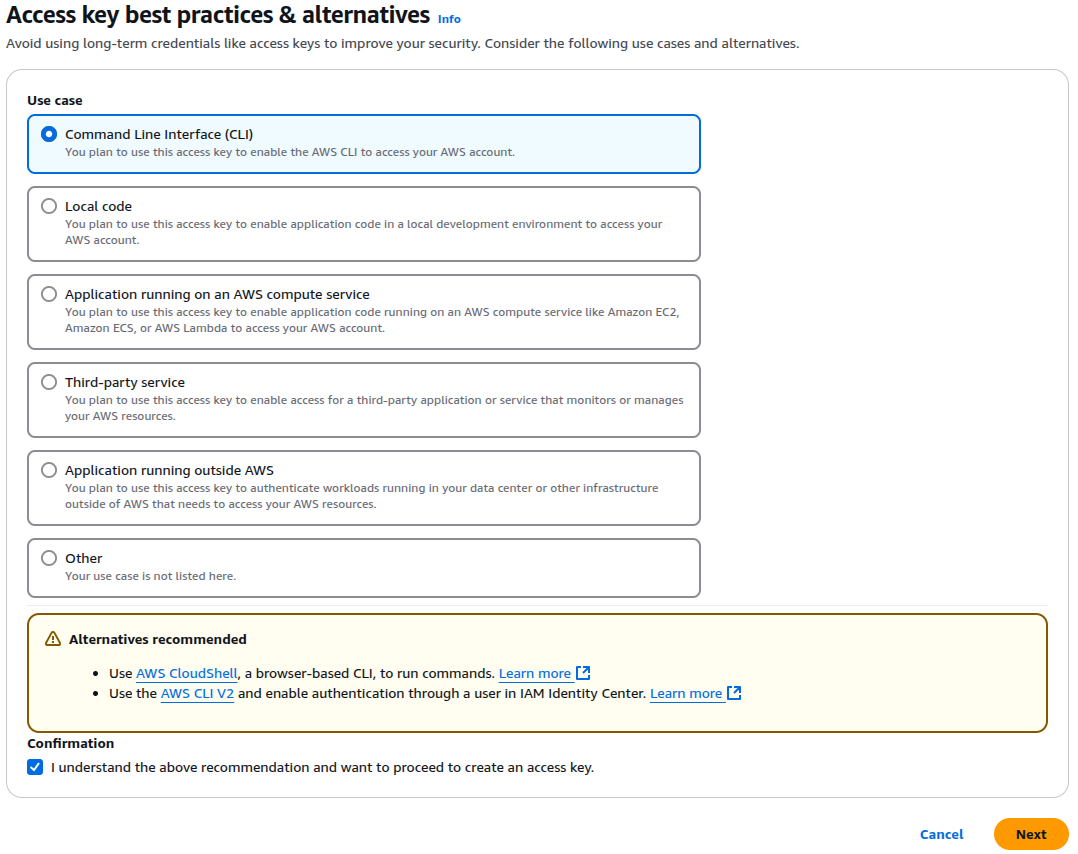
Click Next -> Create access key:
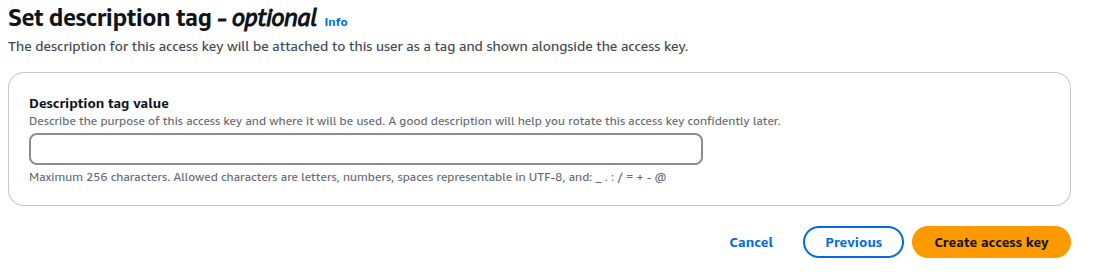
In the following page it should give you two fields:
| Access key | Secret access key |
|---|
Click on Show and make a note of the Secret access key in a safe place. This is super important as you won’t be able to access the Secret access key in future. You have to create the key again.
Configure AWS console
Go back to the command line and try running the configure command as below:
$ aws configure
AWS Access Key ID [****************FY5R]: AKIAV3QSPQY5ZNLG5OFN
AWS Secret Access Key [****************il05]: ****************
Default region name [eu-west-2]:
Default output format [json]:
Retrieve details about the IAM user
Now to ensure your IAM user permission has been set properly try retrieving the IAM user from AWS as follows:
$ aws sts get-caller-identity
{
    "UserId": "AIDAV3QSPQY5WJPPSROHW",
    "Account": "402691950139",
    "Arn": "arn:aws:iam::402691950139:user/vbhadra"
}
The user information has been fetched from AWS. This ensures that we have set the user permission successfully.
Retry the failed operation
Now, you should retry the AWS operation you were doing which landed you into this. In my case I was trying to upload a file into my S3 bucket and I can see it is succeeding now:
$ aws s3 cp mapper.py s3://bigdata-bucket-01/
upload: ./mapper.py to s3://bigdata-bucket-01/mapper.py
So that’s all about the “SignatureDoesNotMatch” issue.

 Tech For Talk
Leave a Reply